How to Upload Custom Wraps to Your Tesla
Start with a wrap for your Tesla, download its PNG, then apply it using the Tesla app or a USB drive. Follow the two steps below.
For the vehicle shown on your screens. This does not change your car’s physical paintwork.
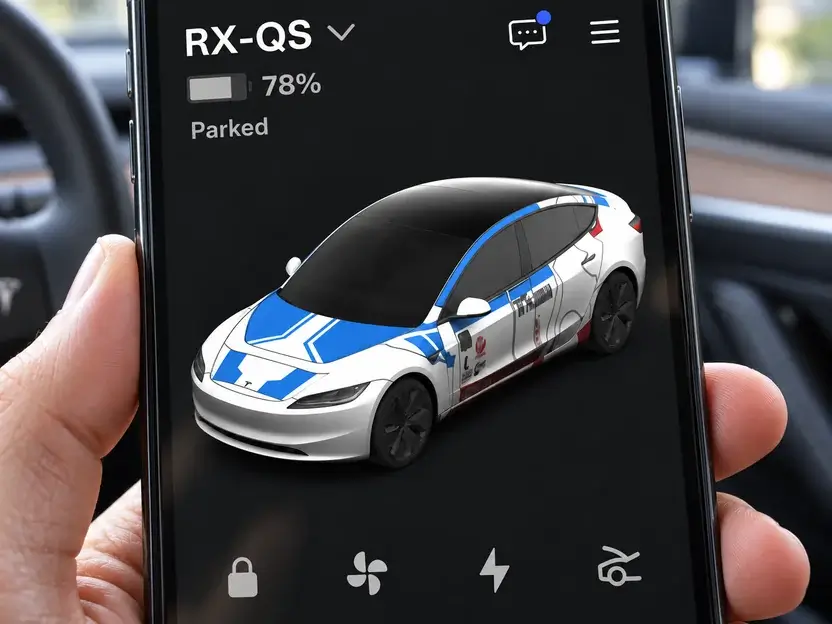
Tesla App
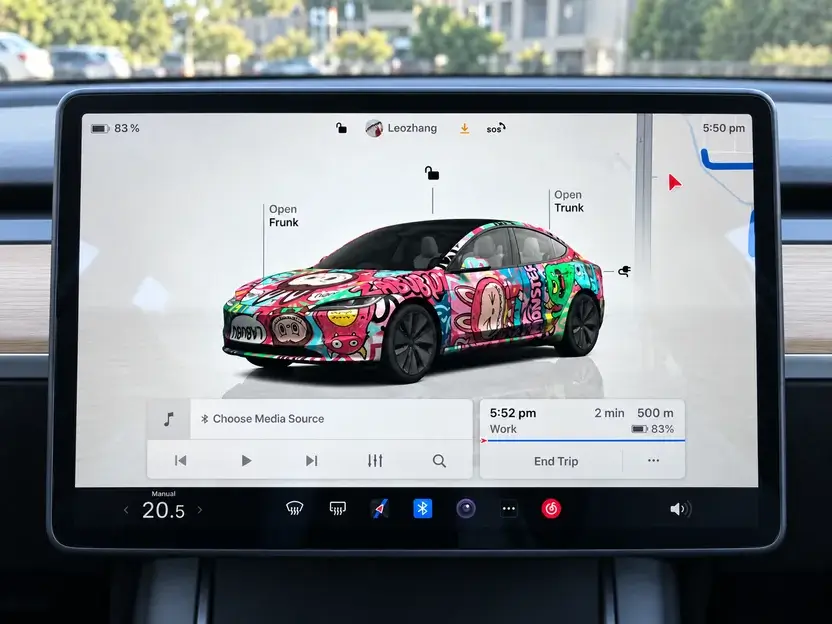
In-car display
Prepare your PNG
No wrap yet? Create your own with our illustrated editor guide, or choose a ready-made design in the gallery. Start with the model and version that match your Tesla.
Download the wrap for your exact model and version. In the editor, choose Paint Shop PNG; in the gallery, choose Wrap file (PNG).
Use the downloaded PNG, not a screenshot or a 3D preview image. Keep its original dimensions and format.
Editor download menu: choose Paint Shop PNG.
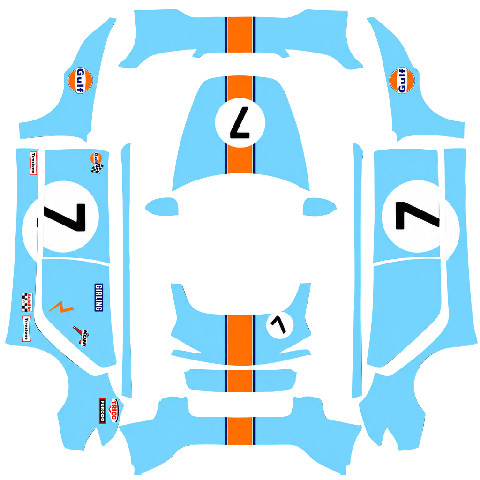
Upload this type of file: the flat PNG
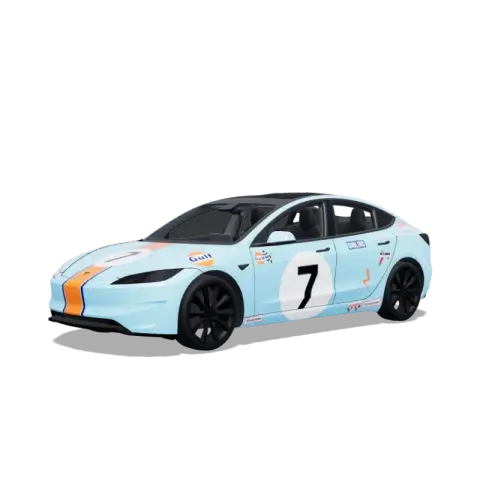
Vehicle preview: shows the result
PNG · ≤ 1 MB
Use a filename of up to 30 characters: letters, numbers, spaces, underscores or hyphens. Example: my-wrap.png.
Check Tesla’s file and USB requirementsImport and apply your wrap
Choose one method below. Once you finish, you do not need to follow the other.
Use Tesla app v4.59.0 or later and a vehicle with the custom-wrap upload feature. Updating the app alone does not guarantee the menu is available.
Using the app? Get the PNG onto your phone
Save the original PNG to your phone’s photo library before opening the Tesla app. If you downloaded it on a computer, transfer it by AirDrop or as an email attachment, keeping the PNG format.
For example, in Apple Mail on iPhone, touch and hold the received PNG attachment and choose Save Image. You can then select it in the app’s photo picker.
Apple · iPhone1.Open the upload menu
Open your vehicle in the Tesla app. Scroll down to Creations, open the Wrap tab, then tap Upload.
- Creations
- Wrap
- Upload
Menu reference: find Creations on your vehicle’s main page.
- 1Creations
Video reference: the Wrap tab inside Creations.
- 1Wrap
2.Choose your PNG and preview it
In the photo picker, select the flat PNG you downloaded. Rotate the vehicle preview to check the design before uploading.
Video reference: select the flat wrap image. This demonstration uses a Cybertruck.
- 1Upload this type of file: the flat PNG
3.Upload and apply your wrap
Tap Upload & Apply Wrap and wait for the upload to finish.
Upload and apply the design to the vehicle visualization in the app and on the car’s screen.
Video reference: tap Upload & Apply Wrap to use the design now.
- 1Upload & Apply Wrap
Check that you’re done
Return to the vehicle’s main page in the app and check your new wrap, then check the car’s display. When both show your design, you’re done. No USB upload is needed.
Want to upload now and apply later? (Upload Only)
Chose Upload Only? With the car in Park, open the menu below on the car’s touchscreen and select your wrap.
- Toybox
- Paint Shop
- Wrap
Tesla’s example of the Paint Shop wrap-selection screen.
Select its thumbnail and check that the on-screen vehicle changes. The example shows the Wrap tab; some instructions call it Wraps.
Tesla · Custom WrapsCheck that you’re done
When the vehicle on the car’s screen shows your chosen design, you’re done. You do not need to upload it again through the app.
1.Put the PNG in a Wraps folder
On your computer, open the USB drive and create a folder named Wraps at its root. Copy the PNG into that folder.
USB drive
Wraps
my-wrap.png
Which USB formats work?
Tesla lists exFAT, FAT32 / MS-DOS FAT, ext3 and ext4. NTFS is unsupported. Back up files before formatting. Keep map and firmware update files off this drive.
Check Tesla’s file and USB requirements2.Connect the drive to a data port
Use a USB port that supports data. Some vehicles have charging-only console ports and require the glovebox port. Check your model’s manual.
Glovebox USB port example. The location depends on your vehicle.
3.Select the wrap on your car’s screen
With the car in Park, open Paint Shop and select your design from the wrap list.
- Toybox
- Paint Shop
- Wrap
Tesla’s example of the Paint Shop wrap-selection screen.
Select its thumbnail and check that the on-screen vehicle changes. The example shows the Wrap tab; some instructions call it Wraps.
Tesla · Custom WrapsCheck that you’re done
When the vehicle on the car’s screen shows your chosen design, you’re done. You do not need to upload it again through the app.
Need a hand?
I can’t find Creations or Wrap. What next?
Check your app and vehicle software. Availability varies by vehicle, configuration and region. If your car supports custom wraps, try USB instead.
Why is my PNG rejected?
Check the PNG format, 1 MB limit, filename and matching vehicle template. Use the original wrap download rather than a preview or screenshot.
Why is the wrap missing from the car’s list?
Check the root-level Wraps folder, drive format and data port. Tesla allows up to 10 wraps from the app and 10 from USB. Also check the PNG requirements.
Why does the design look misplaced?
Check that the model and version match your car. Do not crop or stretch the PNG. Return to the editor to check the layout and download again.